
Before you start
Make sure you have the following:
- An Azure account with permission to create resources. You need the Contributor or Owner role on the subscription or resource group.
- Knowledge of Azure Notification Hubs. Microsoft may charge extra costs depending on the pricing tier and your usage. See the Azure Notification Hubs pricing page.
- Your custom mobile package(s), already generated by following the dedicated documentation:
Overview
To activate notifications in the app, you must enter your Azure Notification Hub details in the app's global settings in Powell Manager. The notification hub is the service that sends notifications to users.
Follow the steps below to create the hub and collect the information you need.
Step 1: Create the notification hub from Azure
- Go to the Azure portal: https://portal.azure.com/
-
Click Create a resource.
-
In the search bar, type notification and select Notification Hub.
- Click Create to open the creation wizard.
-
On the Basics tab, fill in the required fields:
- Subscription and Resource group: select existing ones, or create a new resource group.
- Namespace details: create a new namespace or select an existing one. The namespace name must be globally unique.
- Notification Hub: the name of your hub. Write it down, because you will need it in the final step.
- Location: choose the region closest to your users.
- Pricing tier: Free is selected by default. You can choose Basic or Standard if your usage requires it, and an estimate is displayed.
- Click Review + create, then Create.
- When the deployment is complete, click Go to resource.
Step 2: Configure the notification hub for Android
- In your notification hub, go to Settings > Google (FCM v1).
- Open the service account JSON file you generated in this step.
-
Fill in the following fields using the values from the JSON file:
Azure field JSON key Private Key private_key(keep the-----BEGIN PRIVATE KEY-----and-----END PRIVATE KEY-----lines)Client Email client_emailProject ID project_id - Click Save.
ℹ️ The Google (GCM/FCM) legacy API has been retired by Google. Only FCM v1 is supported.
Step 3: Configure the Azure notification Hub for iOS
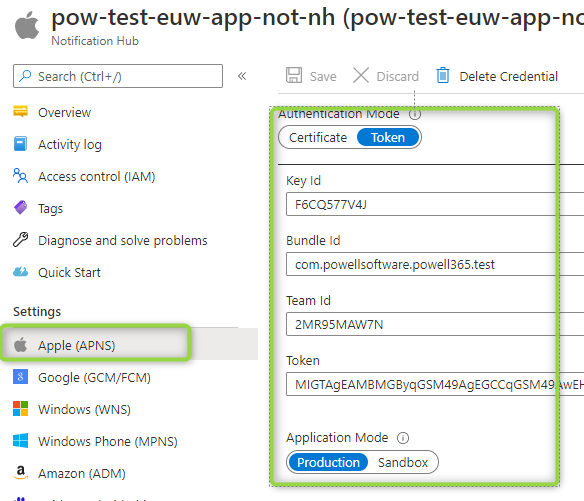
- In your notification hub, go to Settings > Apple (APNS).
- For Authentication Mode, select Token.
- Fill in the following fields:
- Key Id: the Key ID of the notification key created in this step.
-
Bundle Id: the App ID created in this step. Remove the
.notificationserviceextensionsuffix. - Team Id: your Apple Developer Team ID. You can find it in your Apple Developer account under Membership details.
-
Token: the content of the
.p8file generated in this step. Do not include the-----BEGIN PRIVATE KEY-----and-----END PRIVATE KEY-----lines.
- For Application Mode, select Production.
- Click Save.
⚠️ Apple lets you download the
.p8file only once. Store it securely. If you lose it, you must revoke the key and create a new one.
Final Step : Enter the information in Powell Manager
- In the Azure portal, open your notification hub and go to Settings > Access Policies.
-
Copy the Connection String of the DefaultFullSharedAccessSignature policy. Make sure you copy the Full policy, not the Listen one.
- In Powell Manager, go to the Notifications tab of the global settings.
- Fill in the two fields:
- Azure notification hub name: the name you defined in Step 1.
-
Azure notification hub full shared connection string: the connection string you copied above.
- Save your settings.